
When Your Smart Home Turns on Itself: The Bandwidth Battle You Didn’t Sign Up For
A proper smart home WiFi setup is the difference between a home that runs smoothly and one where your thermostat lags, your security camera freezes, and your smart lights take three taps to respond.
Here’s how to set up a smart home WiFi network that actually works:
- Use a WiFi 6 router or mesh system — handles 20+ devices without slowdowns
- Create a separate network for IoT devices — use your router’s guest SSID with client isolation enabled
- Place mesh nodes strategically — one node per 1,000–1,500 sq ft, away from walls and appliances
- Use WPA3 (or WPA2) encryption on both networks with strong, unique passwords
- Choose local-control protocols like Matter or Zigbee for devices that need to work even when the internet goes down
- Run quarterly firmware updates on your router and all connected devices
The problem most homeowners hit isn’t the devices — it’s the network underneath them.
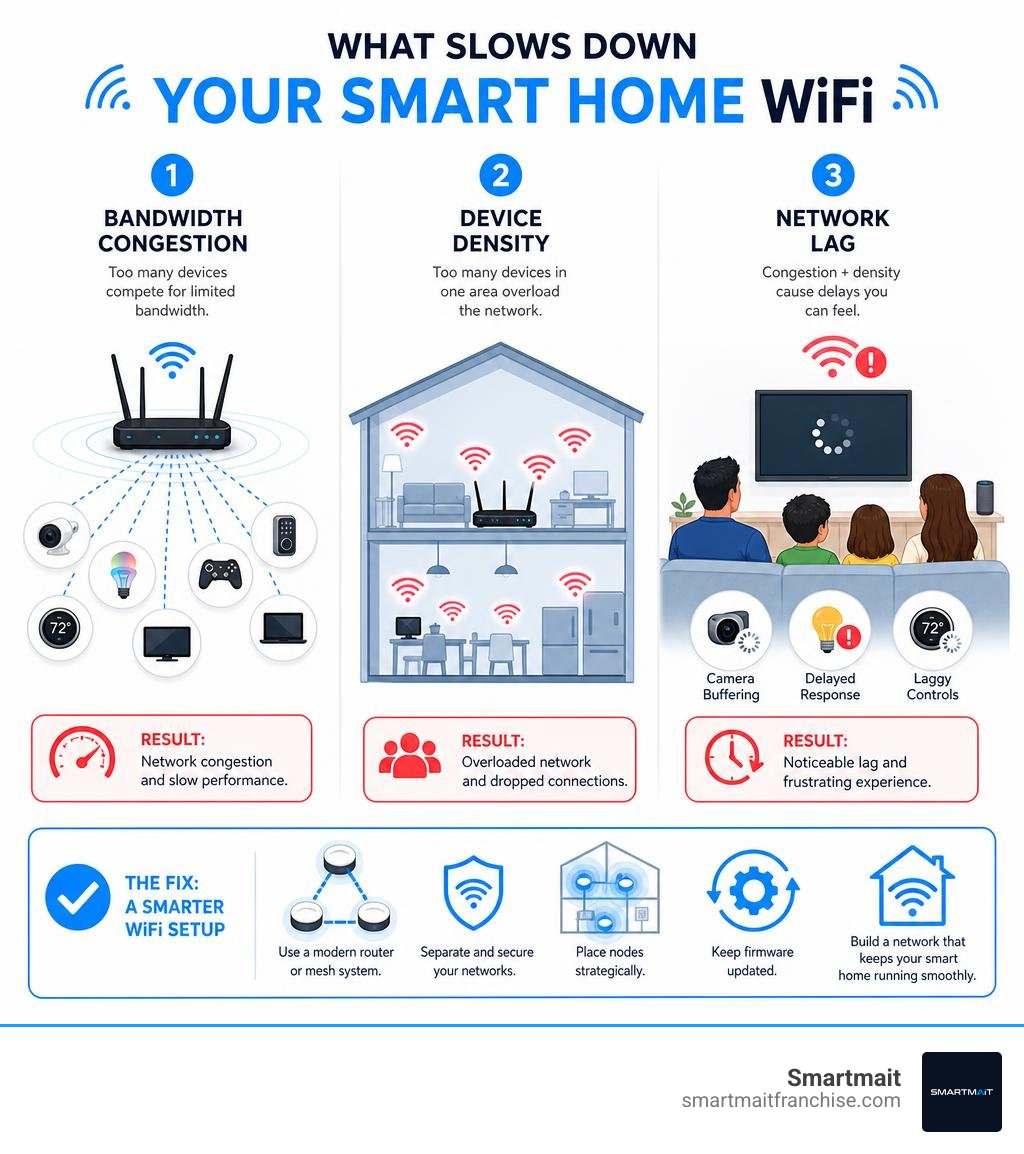
The average U.S. home already has 25+ connected smart devices, and that number is expected to hit 50+ by 2028. Most standard routers were never designed to manage that kind of traffic. The result is what network engineers call bandwidth congestion — too many devices competing for the same limited airtime.
It’s not a device problem. It’s an infrastructure problem.
I’m Dominic Hesano, and through building SmartMait — a home and business automation franchise — I’ve seen how a poorly planned smart home WiFi setup causes more frustration than any individual device ever could. In this guide, I’ll walk you through exactly how to fix it.
Why Your Standard Router Fails Under Smart Home Demands

We have all been there. You buy a shiny new smart plug or a high-definition video doorbell, plug it in, and suddenly your Netflix stream starts buffering. Or worse, your smart bulb decides to go offline for no reason, flashing like a tiny, frustrated strobe light in your hallway.
When you run a standard, out-of-the-box router provided by your internet service provider (ISP), you are essentially forcing all your devices into a digital bottleneck. Standard routers are excellent at sending a massive chunk of data to one or two high-demand devices—like your laptop or smart TV. However, they are notoriously terrible at managing dozens of tiny, constant streams of background data from smart plugs, sensors, and security cameras.
If you are a DIY enthusiast who loves building custom systems, such as a DIY NodeMCU Home Automation: Stop Clapping, Start Coding project, you already know that every single ESP8266 or microcontroller you add to your network demands its own IP address and its own slice of airtime. Multiply that by your family’s phones, tablets, smart appliances, and security systems, and your standard router simply chokes.
The Difference Between Standard and Smart Home Networks
A standard home network is built like a single-lane highway. It works perfectly fine if you only have three or four large trucks (like your work computer and streaming console) driving on it. But when you throw 30 tiny scooters (smart switches, smart locks, and air quality monitors) onto that same single lane, everything grinds to a halt.
A dedicated smart home network acts like a multi-lane superhighway with dedicated lanes for different types of traffic.
- Traffic Management: Standard networks treat all data equally. Your router might prioritize a background weather update on a smart fridge over the live video feed from your security camera. A smart home network uses Quality of Service (QoS) settings to prioritize critical traffic.
- Device Density: Standard routers usually cap out at 15 to 25 simultaneous wireless connections before showing severe latency. Smart home networks utilize advanced hardware designed to maintain stable connections for 50, 100, or even more devices.
- Background Data: Smart devices are incredibly chatty. They constantly ping external cloud servers to check for firmware updates, report status changes, and listen for commands. This background chatter creates a high “noise floor” that degrades overall wireless performance.
- Local Processing: Standard networks rely heavily on the cloud. If your internet goes down, your smart home ceases to exist. A robust smart home network prioritizes local processing, allowing your switches and sensors to communicate directly with a local hub without needing to talk to a server halfway across the world.
Smart Home Protocols: WiFi 6, Matter, Zigbee, and Z-Wave
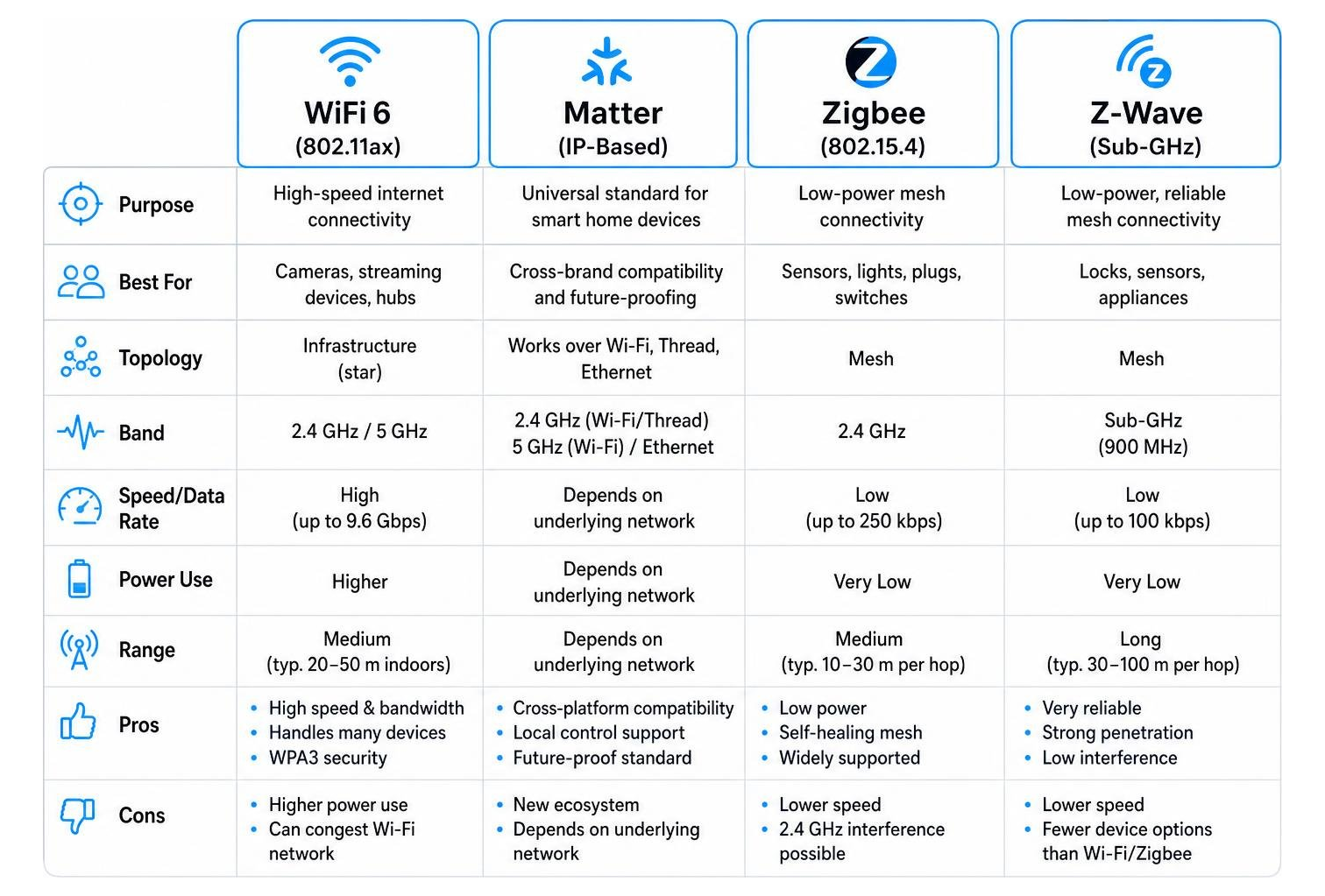
One of the biggest mistakes homeowners make during their smart home wifi setup is trying to put every single device on the 2.4 GHz WiFi band. This is a recipe for disaster. To build a reliable system, you need to understand the different languages your devices speak.
WiFi 6 and WPA3 Security
If you are going to use WiFi for your smart devices, WiFi 6 (802.11ax) is an absolute necessity. WiFi 6 adoption in smart home gateways improves multi-device performance by up to 4x compared to older WiFi 5 routers in homes with 20 or more connected devices. It achieves this through a technology called OFDMA (Orthogonal Frequency-Division Multiple Access), which allows the router to talk to multiple devices simultaneously rather than making them wait in line. Additionally, WiFi 6 introduces WPA3 security, which provides much stronger encryption to protect your home from opportunistic hackers.
Zigbee and Z-Wave
To save your WiFi bandwidth for things that actually need it (like video streaming and Zoom calls), you should offload your low-bandwidth devices to dedicated mesh networks like Zigbee and Z-Wave.
- Zigbee operates on the 2.4 GHz spectrum but uses a self-healing mesh architecture where every mains-powered device (like a smart bulb) acts as a repeater to extend the range.
- Z-Wave operates on a much lower sub-GHz frequency (around 908 MHz in the US), meaning it doesn’t experience any interference from your WiFi network and easily passes through thick walls.
Using these protocols is particularly vital when you are trying to How to Choose the Ultimate Automated Home Security Systems Without Losing Your Mind, as security sensors must remain online 100% of the time without fighting your kids’ gaming consoles for bandwidth.
Matter and Thread
Matter is the unified royalty-free connectivity standard that allows devices from different brands to work together seamlessly. Under the hood, Matter devices often use Thread—a low-power, secure mesh protocol that is incredibly fast, doesn’t require a central internet connection, and operates completely independently of your standard WiFi network.
Step-by-Step Guide to a Seamless Smart Home WiFi Setup
Setting up a robust network requires a systematic approach. You cannot simply plug in a new router, use the default settings, and hope for the best. To get a comprehensive overview of the foundational steps, you can read our deep-dive on How to Set Up a Smart Home Network .
Let’s break down the physical configuration and settings you need to implement right now.
Choosing the Right Hardware for Your Smart Home WiFi Setup
The foundation of your network is your gateway hardware. If you live in a home larger than 1,500 square feet, a single, central router is rarely going to cut it. You need a dedicated mesh WiFi system or a high-performance tri-band router.
When looking at mesh systems, it is crucial to pay attention to compatibility. For instance, if you decide to go with Google’s ecosystem, you can learn how to Set up Nest Wifi Pro or Nest Wifi – Google Home and Nest Help . Nest Wifi Pro (which utilizes next-gen Wi-Fi 6E) cannot be mixed with older Nest Wifi or Google Wifi points (Wi-Fi 5) in the same mesh network. If you are using older hardware, you will need to follow the dedicated guide to Set up Google Wifi – Google Home and Nest Help to ensure proper configuration.
Additionally, you should consider a multi-protocol gateway hub. Systems like Samsung’s SmartThings allow you to bridge the gap between your WiFi network and your Zigbee/Z-Wave devices. To get this running smoothly, refer to the manufacturer guide on how to Set up your SmartThings Hub, SmartThings Wifi, or Connect Home .
Segmenting Your Network: Isolating IoT Devices for Security
If a hacker compromises a cheap smart light bulb on a standard “flat” network, they can easily pivot to access your personal laptop, tax documents, or network-attached storage (NAS). This is why network segmentation is non-negotiable.
Smart home networks using separate IoT or guest SSIDs with client isolation reduce security incidents by an impressive 60% compared to flat networks.
Here is how to set up basic network segmentation:
- Log into your router’s admin panel by typing its IP address (usually
192.168.1.1or192.168.0.1) into a web browser. - Locate the Guest Network settings and enable a secondary wireless network.
- Name this network something distinct (e.g.,
Home_IoT) and secure it with WPA2/WPA3 encryption and a strong, unique password. - Enable Client Isolation (sometimes called “AP Isolation” or “Device Isolation”). This setting prevents devices connected to the guest network from talking to each other or to devices on your main network. They can only access the internet.
- Force your smart devices onto this network. Set your smart plugs, appliances, and light bulbs to this secondary network while keeping your laptops, phones, and streaming devices on your primary network.
For advanced users, you can use VLAN tagging (Virtual Local Area Networks) to create highly customized, secure virtual networks. However, keep in mind that some mesh systems and ISPs require additional managed switch hardware to support VLAN tagging properly.
Optimizing Coverage and Future-Proofing Your Network
Once your network is segmented, the next step is physical optimization. You can have the most expensive router on the market, but if it is sitting in a metal cabinet in your basement, your smart home performance will be abysmal.
Router and Node Placement Guidelines
| Placement Location | Impact on Smart Home Signal | Best Use Case |
|---|---|---|
| Central, Elevated (Eye-level or higher) | Maximum coverage, minimal obstruction | Primary Router / Main Mesh Node |
| Inside a Metal Cabinet / Closet | Severe signal degradation (up to 90% loss) | Avoid entirely |
| Near Large Appliances (Kitchen) | Heavy electromagnetic interference (2.4 GHz) | Avoid placing nodes here |
| Halfway between Router and Dead Zone | Extends network cleanly without latency drop | Satellite Mesh Nodes |
If you are planning a new property or undergoing a major renovation, planning your network topology early is critical. Be sure to check out our guide on Smart Home New Construction Must-Have Features for Your Dream Build to ensure you run the correct low-voltage cabling before the drywall goes up.
Eliminating Dead Zones with Mesh Nodes
Mesh WiFi systems are the ultimate weapon against dead zones, reducing coverage gaps by up to 90% in homes over 2,500 square feet. Unlike cheap range extenders—which create secondary, weaker networks that force your devices to manually disconnect and reconnect—mesh nodes work together under a single network name (SSID). They dynamically route your devices to the strongest node as you move around.
When setting up your mesh network, follow these best practices:
- Avoid the Daisy Chain: Try to place your satellite nodes in a star topology around your main router rather than in a straight line.
- Use Ethernet Backhaul: If your home is wired with Cat6 Ethernet, plug your mesh nodes directly into the wall. This uses a physical wire to handle the communication between nodes, leaving 100% of the wireless bands free for your smart devices.
- Run a Mesh Test: Most modern router apps (like the Google Home app or SmartThings app) include a built-in mesh test. Run this to ensure your nodes are close enough to talk to each other but far enough apart to maximize coverage.
Future-Proofing for the 2028 Device Explosion
With projections indicating that the average household will have over 50 connected devices by 2028, you must build capacity now.
When buying new appliances or smart devices, prioritize those that support local communication (like Matter over Thread) rather than those that require a constant cloud connection. This ensures that even as your device count grows, your outbound internet bandwidth remains unclogged. Additionally, ensure your main router has a robust CPU and at least 512MB of RAM to handle the massive routing tables required to keep dozens of devices organized.
Maintaining and Troubleshooting Your Smart Home Network
A smart home network is not a “set it and forget it” project. It requires routine maintenance to remain secure and perform at its peak.
Troubleshooting Common Issues During Your Smart Home WiFi Setup
Even with the best planning, you will occasionally run into hiccups. Here are the most common issues and how to resolve them:
- The 2.4 GHz Pairing Failure: Many cheap smart devices only support the 2.4 GHz band. If your phone is automatically connected to your router’s 5 GHz band, the device setup app might fail to pair.
- The Fix: Temporarily disable the 5 GHz band in your router’s settings during setup, or walk far enough away from your house until your phone drops down to the longer-range 2.4 GHz band, then complete the pairing.
- Appliance Offline Issues: Large appliances (like smart refrigerators or washing machines) often have weak wireless radios. They may also require specific port configurations to communicate with their companion apps. For example, some smart appliances require you to enable multicast routing on your router and ensure ports TCP 80/443 and UDP 5353 are open.
- IP Address Conflicts: When you have dozens of devices constantly disconnecting and reconnecting, your router can occasionally assign the same IP address to two different devices.
- The Fix: Go into your router’s DHCP settings and assign static IP addresses (or DHCP reservations) to your most critical, permanent devices—like your smart hubs, security cameras, and main computer.
Long-Term Security Practices and Audits
To keep your network locked down over time, establish these simple habits:
- Enable Automatic Firmware Updates: Outdated firmware on consumer smart home devices is one of the most common entry points for network attacks. Enable automatic updates on your router and smart hubs.
- Audit Your Device Inventory Annually: Log into your router’s admin panel once a year and look at the list of connected devices. If you see old devices you no longer use (or smart plugs you threw away months ago), delete their profiles from your network.
- Rotate Your Master Passwords: If you ever have to share your WiFi password with a guest or a contractor, use your router’s guest network. Never give out your primary network password, and change your admin password at least once a year.
Frequently Asked Questions about Smart Home WiFi
How many devices can a standard router handle before slowing down?
Most standard ISP-provided routers begin to experience latency, packet loss, and frequent disconnections once you connect 15 to 25 simultaneous devices. High-performance WiFi 6 routers and mesh systems can easily handle 100+ devices by utilizing technologies like OFDMA and MU-MIMO to manage traffic efficiently.
Do I need a smart home hub if I have a strong mesh WiFi system?
Yes, if you want a truly reliable, automated home. While a strong mesh WiFi system provides excellent coverage, it only speaks WiFi. A dedicated smart home hub (like SmartThings or a Home Assistant green hub) allows you to connect Zigbee, Z-Wave, and Thread devices. It also handles local automations, meaning your motion sensors can turn on your lights instantly even if your fiber internet connection goes down.
Can I use my router’s guest network to isolate smart home devices?
Absolutely. In fact, for most households, enabling a guest network with client isolation enabled is the easiest and most effective way to segment your smart home. This keeps your smart light bulbs completely separated from your personal computers, banking details, and work devices without requiring complex network engineering.
Conclusion: Let SmartMait Build Your Bulletproof Network
Building a stable, secure, and fast smart home wifi setup takes planning, the right hardware, and ongoing maintenance. While the DIY route is incredibly rewarding, it can also quickly become a full-time job of troubleshooting IP conflicts, placing nodes, and updating firmware.
At SmartMait, we specialize in taking the headache out of smart home technology. We don’t just install your smart devices; we design and build the robust, enterprise-grade wireless infrastructure needed to keep them running flawlessly. By combining professional hardware installation with our signature ongoing maintenance and optimization services, we ensure your devices never have to fight for bandwidth again.
Ready to upgrade your home’s digital foundation? Visit SmartMait today to find a local franchise near you and schedule your professional network assessment.